

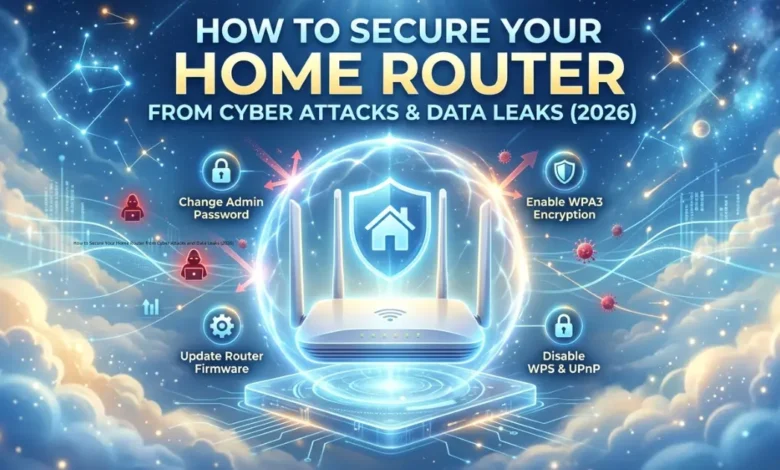
How to Secure Your Home Router from Cyber Attacks and Data Leaks (2026). Your home Wi-Fi router is the digital gateway to your entire life. Every smartphone, laptop, smart home device, and cloud storage backup relies on this single piece of hardware to connect to the outside world. For remote workers handling sensitive corporate data or tech enthusiasts deploying low-latency networks, the router is also a primary target for cybercriminals.
A compromised router allows attackers to intercept your internet traffic, redirect you to phishing websites, leak personal data, or even enlist your devices into malicious botnets. Proactive consumer cybersecurity is no longer optional.
This Cyber Radar guide delivers actionable, high-utility technical steps to secure your home router from modern cyber attacks and prevent catastrophic data leaks.


The Hidden Vulnerabilities of Stock Routers
Most internet users set up their router once and never look at its settings again. Internet Service Providers (ISPs) often distribute hardware with default configurations that favor convenience over defense. These default settings—such as unchanged admin credentials, outdated encryption standards, and remote management protocols—are easily scanned and exploited by automated hacking tools.
Securing your network requires diving into your router’s firmware dashboard and locking down its digital parameters.
5 Essential Steps to Harden Your Home Network
Follow these strategic technical configurations to transform your router from an open gate into a secure fortress.
1. Replace Factory Admin Credentials Immediately
Every router comes with a default username and password (often something weak like admin and password). Attackers maintain vast databases of these factory credentials.
- The Fix: Log into your router’s IP address via a web browser (typically
192.168.1.1or192.168.0.1), navigate to System Settings, and create a strong, unique administrator password of at least 16 characters using a mix of letters, numbers, and symbols. - Note: This is completely separate from the Wi-Fi password your guests use to connect.
2. Upgrade to WPA3 Wireless Encryption
Wireless encryption scrambles the data traveling between your device and the router, preventing local attackers from eavesdropping on your traffic.
- The Fix: In your wireless security settings, switch your security protocol from the aging WPA2 standard to WPA3 (Wi-Fi Protected Access 3). WPA3 provides much stronger individualized data encryption and protects against brute-force password guessing attacks. If you have legacy smart home gadgets that do not support WPA3, select the “WPA2/WPA3 Mixed” compatibility mode.
best-mesh-wi-fi-systems-satellite-internet
3. Disable Remote Management and UPnP
Two specific convenience features inside your router pose massive security risks if left unchecked:
- Remote Management: This feature allows you to access your router’s settings from outside your home network via the open internet. Turn this OFF to prevent hackers from worldwide locations from attempting to log into your admin dashboard.
- Universal Plug and Play (UPnP): UPnP allows smart devices, gaming consoles, and applications to automatically open network ports on your router to communicate with external servers. Unfortunately, malware can exploit UPnP to open unauthorized backdoors into your local network. Turn this OFF and configure port forwarding manually if a specific app requires it.
4. Create an Isolated Guest Network for Smart Devices (IoT)
Internet of Things (IoT) hardware—such as smart light bulbs, security cameras, and smart TVs—frequently lacks robust internal security protocols. If a hacker compromises a cheap smart bulb on a unified network, they can easily pivot to attack your work laptop on the same connection.
- The Fix: Enable a Guest Network on your router. Change the settings so that your main work devices and smartphones reside on the primary network, while all smart home gadgets and visitors connect exclusively to the guest network. Ensure the “Allow guests to access local network” option is disabled.
5. Automate Firmware Updates
Just like your phone’s operating system, your router’s firmware requires continuous patching to fix newly discovered zero-day security vulnerabilities. An unpatched router is an open invitation for exploits.
- The Fix: Locate the Firmware or Maintenance tab in your admin dashboard. Enable Automatic Firmware Updates if your hardware supports it. If it does not, set a calendar reminder to log in once a month, check the manufacturer’s site for updates, and apply them manually.
The Security Matrix: At-a-Glance Checklist
| Feature/Setting | Default State | Recommended Secure State | Risk Level If Ignored |
|---|---|---|---|
| Admin Password | Factory Default (admin) | Unique 16+ Character Password | Critical |
| Encryption Standard | WPA2 | WPA3 (or WPA2/WPA3 Mixed) | High |
| Remote Management | Enabled | Disabled | High |
| UPnP Feature | Enabled | Disabled | Medium |
| IoT Smart Devices | Main Network | Isolated Guest Network | High |
| Firmware Status | Outdated | Auto-Update Enabled | Critical |
Final Thoughts: Complete Your Defense with a Secure VPN
While hardening your router blocks external intruders from invading your local network, your ISP can still see your unencrypted DNS queries and web traffic destinations. For absolute data privacy—especially if you are utilizing public connections or satellite networks—pair your secure router setup with a high-quality Virtual Private Network (VPN). A VPN wraps your traffic in an additional layer of end-to-end encryption before it even leaves your home network infrastructure.
Discover more from Tech News Radar
Subscribe to get the latest posts sent to your email.
